
Fix Common Issues
Quick fixes for the most common RoKMaster problems — security software, game startup, licenses and emulator detection.
5 min read · Updated August 2026
- 1
Windows Defender
If Windows Defender flags RoKMaster, add the installation folder to the exclusions list and allow the installer to finish.
- 2
Antivirus Blocking
Third-party antivirus can quarantine the installer or block the bot at runtime. Whitelist the RoKMaster folder, then run the setup again.
- 3
Wrong LDPlayer Version
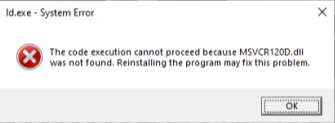
If the game shows an ld.exe System Error dialog, your LDPlayer version is outdated. Update LDPlayer to the current release and restart the emulator before retrying.
- 4
Google Login Issue
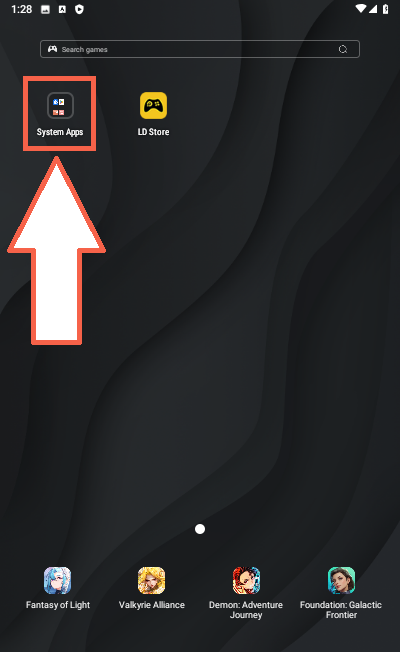
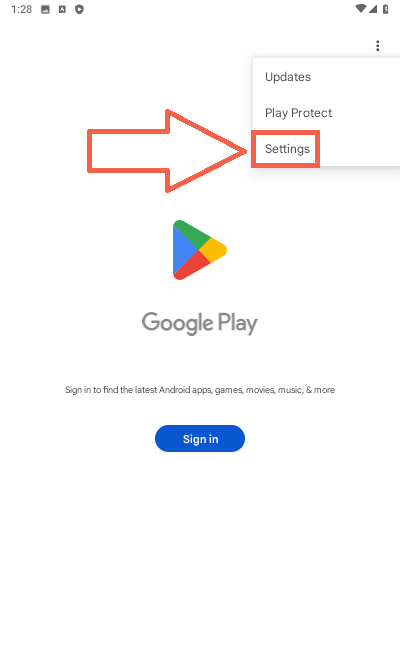
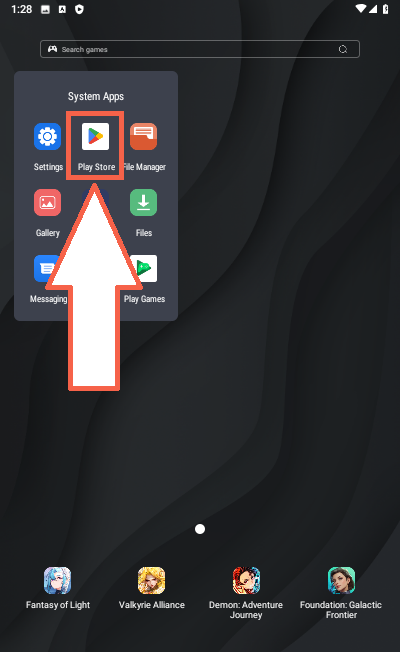
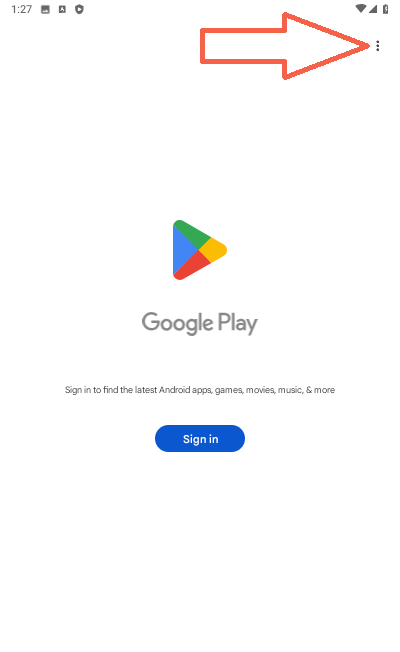
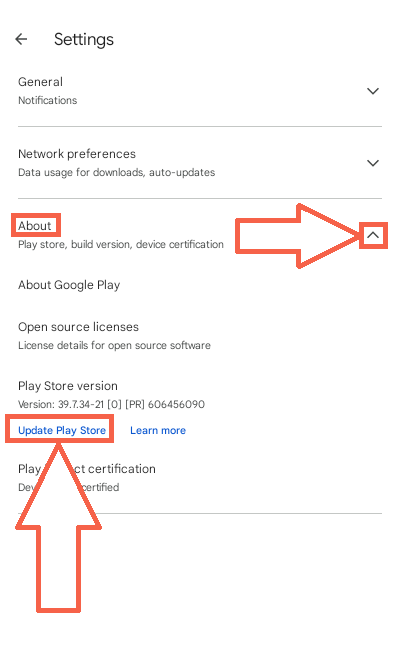
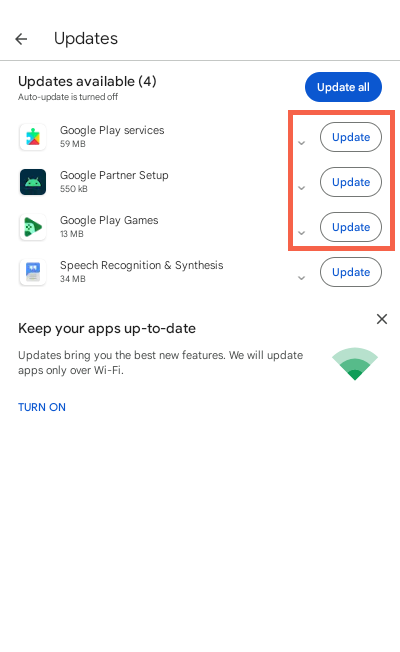
If Google sign-in fails inside the emulator, update the Play Store app and then sign in again with your Google account.
- 5
License Error
Re-paste the key from your order page, confirm the license is active on this device and contact Discord support if the error persists.
- 6
Emulator Not Found
Launch the emulator before starting RoKMaster, then check the emulator path in RoKMaster settings so the bot can detect the instance.
Was this guide helpful?