
Switch Game Accounts
Move between governors quickly by switching the active emulator and letting RoKMaster synchronize.
4 min read · Updated August 2026
- 1
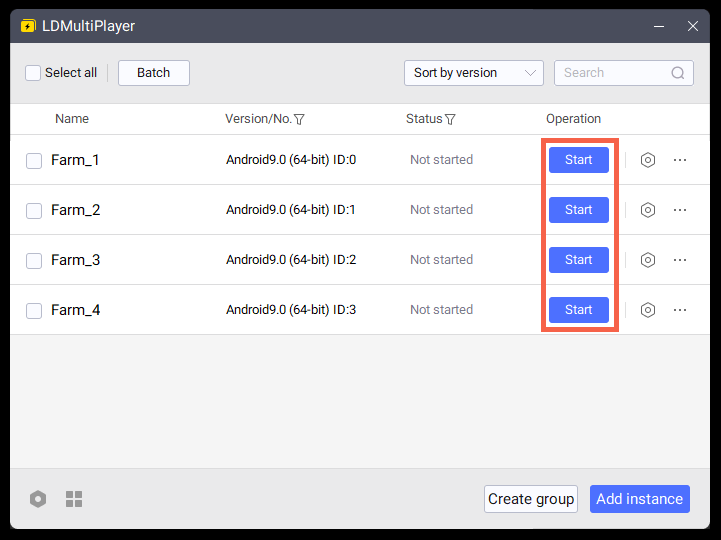
Open LDMultiPlayer
Open LDMultiPlayer from your Desktop or Start menu. It lists every emulator instance you have created and lets you start the one linked to RoKMaster.

- 2
Start Emulator & Login
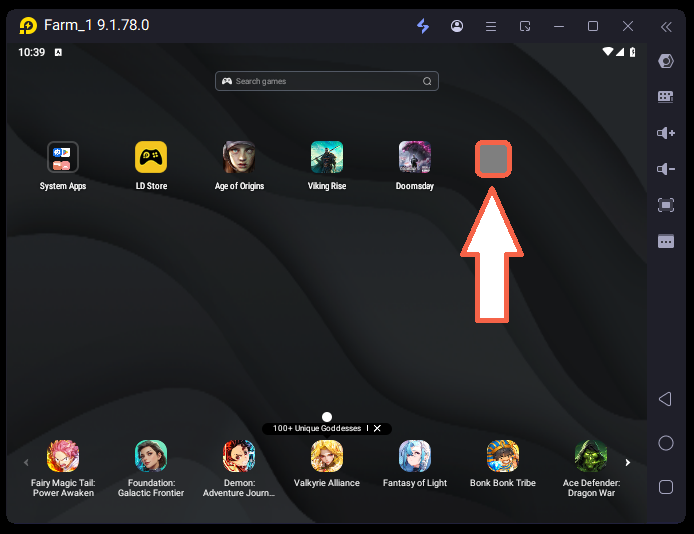
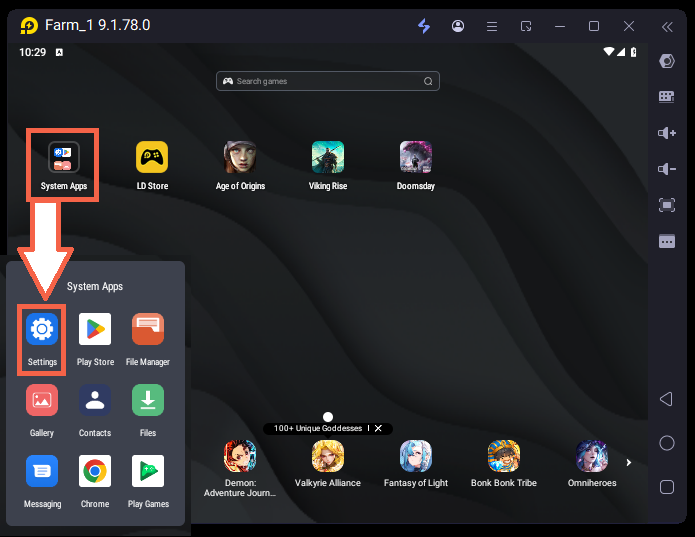
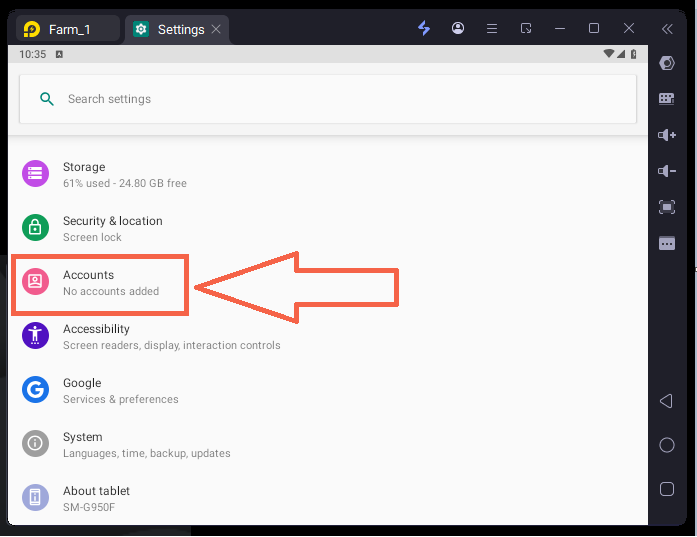
Start the emulator instance linked to RoKMaster, open Rise of Kingdoms and sign into the governor you want to farm next. Wait for the city to finish loading, then switch back to RoKMaster and synchronize so the bot detects the new account.
Was this guide helpful?