Install RoKMaster on PC
Download the installer, run it and complete the first-time setup so RoKMaster is ready to automate Rise of Kingdoms.
4 min read · Updated August 2026
- 1
Download Installer
Download the RoKMaster installer from your SGHub order page or the official SGHub Discord. Keep the file somewhere easy to find, such as your Desktop or Downloads folder.
- Only download RoKMaster from your SGHub order page or the official SGHub Discord.
- Check that the file is named KingdomBotSetup.exe before running it.

- 2
Run Installer
Double-click KingdomBotSetup.exe and follow the setup wizard. Accept the default installation folder unless you have a reason to change it.
- Run the installer once and let it finish — do not start a second copy.
- If Windows SmartScreen appears, click More info → Run anyway. RoKMaster is unsigned, which is expected.
- 3
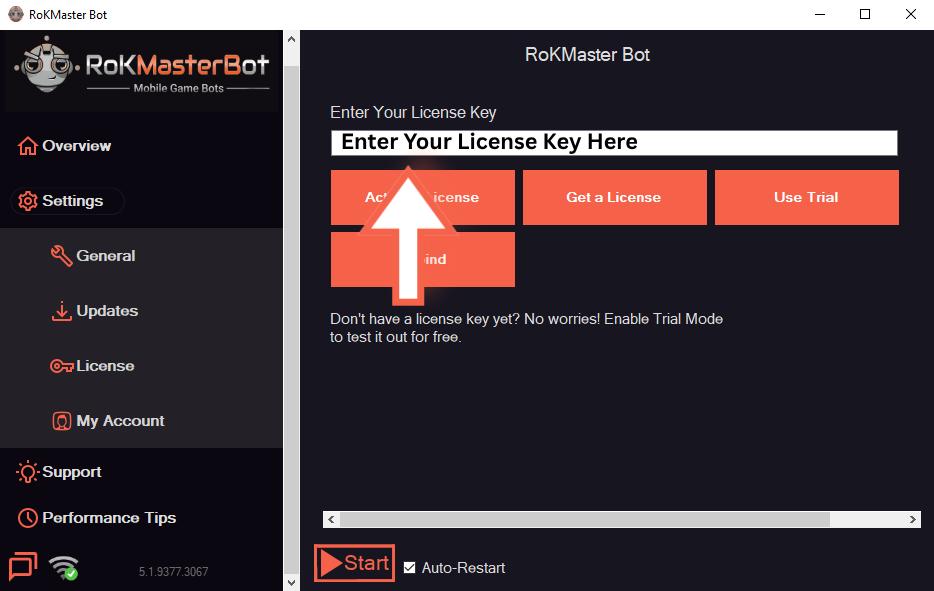
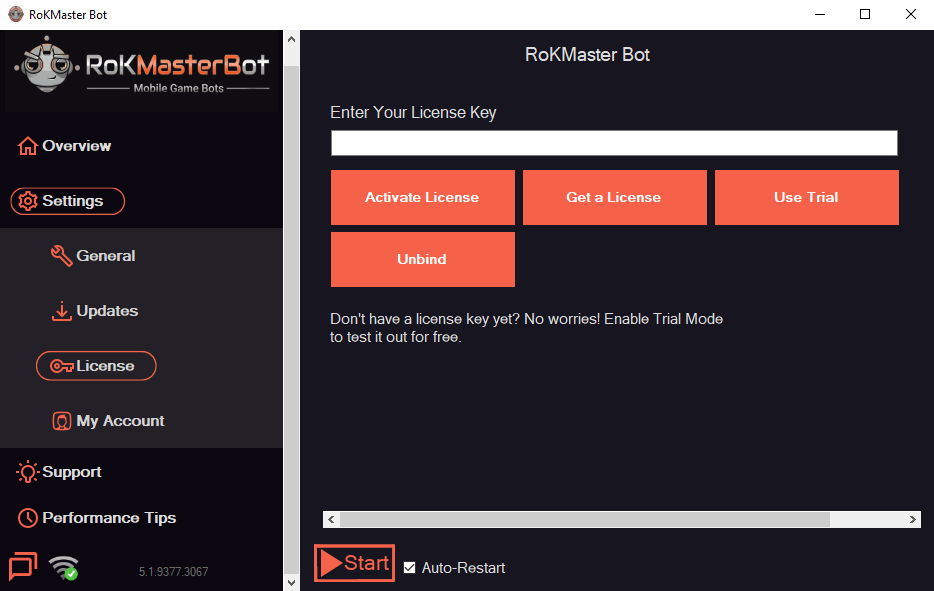
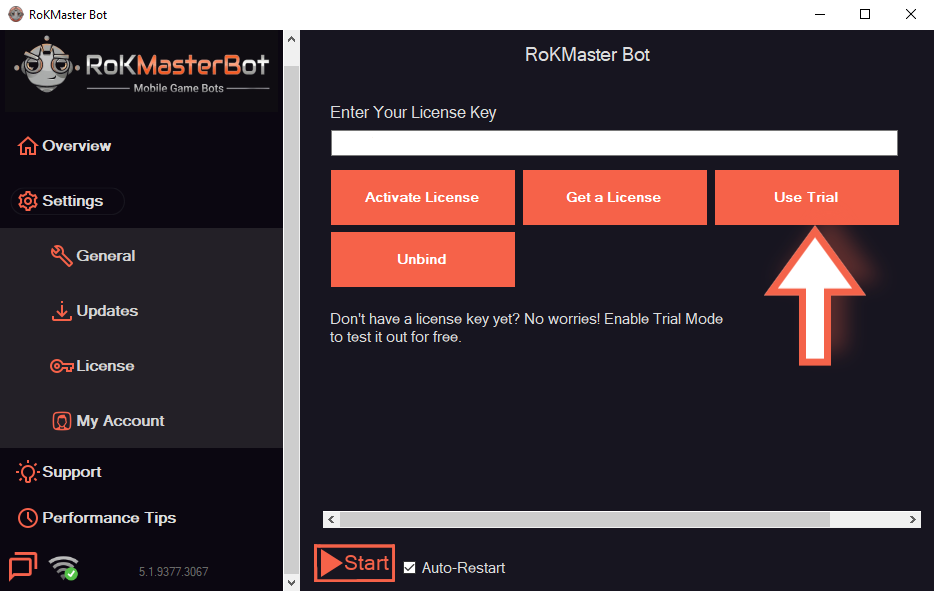
Add License Key or Free Trial
Open RoKMaster and paste your license key into the key field, then click Activate License to bind it to this device. If you have not bought a key yet, you can start the free trial from the same screen.
- Paste the key exactly as shown, without spaces.
- Use the free trial only if you have not activated a paid key yet.
- 4
Launch RoKMaster
Open RoKMaster from your Desktop shortcut or the Start menu. The first launch can take a little longer while the bot prepares its workspace.
- 5
Complete First Setup
Follow the first-setup screen: choose a working profile, connect the game and wait until RoKMaster shows a ready state before adding any actions.
Was this guide helpful?